Sony Bluetooth headphones share a common connection logic, but the actual process varies depending on the model, the operating system of the target device, and the number of devices already stored. Understanding these variables avoids most of the issues encountered during the first pairing or a tricky reconnection.
NFC Pairing on Sony Headphones: An Alternative to Classic Bluetooth
Competing guides almost all detail the manual Bluetooth procedure (holding the power button, flashing light, selecting in settings). They overlook a feature present on several Sony headphones: NFC pairing by contact.
The principle is simple. If the smartphone has NFC enabled, you just need to bring the phone close to the area marked “N” on the headphone earcup. Pairing is triggered without going through Bluetooth menus, without holding a button for several seconds.
This method remains limited to NFC-compatible Android phones. On iPhone, the NFC chip does not support this type of audio pairing. For those who want to delve deeper into the classic procedure for pairing Sony Bluetooth headphones, the step-by-step guide covers the most common cases.
Sony Bluetooth Connection and Multiple Devices: The Phantom Device Trap
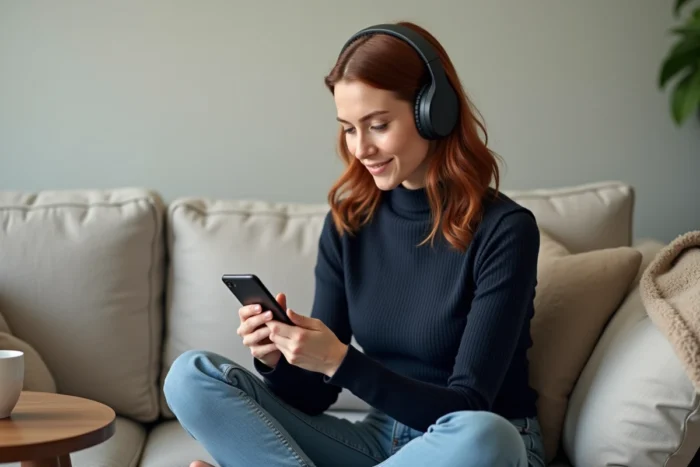
A Sony headset can remember multiple devices. This is an everyday advantage, but it is also the source of the most common problem when trying to connect to a new device.
The typical scenario: you try to connect your headset to a second phone or a computer. The headset does not appear in the list of available Bluetooth devices. The light does not blink in pairing mode. You hold the button, and nothing changes.
The cause is often a previously known device that remains connected in the background. The headset automatically reconnects to the last stored device, and as long as this connection is active, it does not become visible to a new device. The solution is to temporarily turn off Bluetooth on all previously paired devices before restarting the procedure on the new one.
Forcing Pairing Mode When the Headset Refuses to Show Up
If the headset remains invisible despite turning off other devices, resetting the pairing mode is necessary. On most Sony models (WH-1000XM4, WH-1000XM5, WH-CH720N, WH-CH520), the procedure requires holding the power button for several seconds after turning it off, until the light blinks alternately in blue.
This blue blinking confirms that the headset has entered discovery mode. It then appears in the Bluetooth list of the target device. Without this visual signal, the headset is not in pairing mode, regardless of the number of attempts on the phone or computer side.
Sony Bluetooth Headset on Windows PC: The Problem Rarely Lies with the Headset
Field reports vary on this point, but a trend emerges: when a Sony headset works perfectly on a smartphone but remains undetectable on a Windows PC, the problem lies with the computer.
- The PC’s Bluetooth driver may be outdated or corrupted. An update via the Windows Device Manager often resolves the issue.
- The Windows Bluetooth service may be disabled or silently crashed. Restarting the service (via services.msc) is sufficient in most cases.
- Some Bluetooth adapters built into laptops do not support the advanced audio profiles used by Sony headsets, resulting in a partial connection (headset visible but no sound).
Updating the Bluetooth driver before any pairing attempt is a reflex that saves hours of unnecessary troubleshooting. The headset itself does not require any specific configuration to work with Windows.
Sony Headphones Connect App: Successful Pairing Does Not Mean Audio Connection
A rarely covered angle by guides: the distinction between a headset paired in the Sony Headphones Connect app and a headset actually connected as an audio output in the phone’s Bluetooth settings.
The app may show the headset as detected, allow changes to noise-canceling settings or the equalizer, while not streaming any sound. The app manages the headset settings, not the audio link itself.
For sound to actually flow to the headset, two things need to be checked:
- The headset must appear as “connected” (and not just “paired”) in the system’s Bluetooth settings, not just in the Sony app.
- On Android, the A2DP audio profile must be active. If only the hands-free profile (HFP) is checked, the headset receives calls but not music.
- On some versions of iOS, you need to manually select the headset as the audio output in the control center, even after Bluetooth connection is confirmed.
When the App Refuses to Detect the Headset
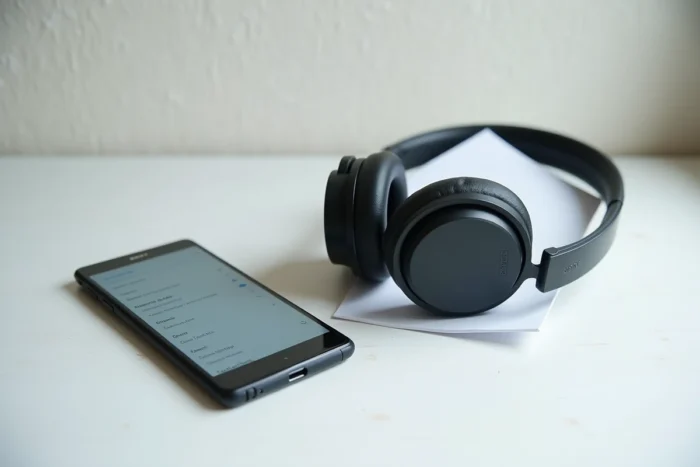
If Sony Headphones Connect does not find the headset, the most common cause is an outdated version of the app. Sony regularly updates the app to integrate compatibility with new models. A recent headset paired with an old version of the app produces exactly this symptom.
The other documented cause: location permissions. On Android, the app requires access to location to scan for nearby Bluetooth devices. Without this permission, the scan fails silently, without an explicit error message.
Resolving a Sony Bluetooth Pairing Failure: The Checklist Before Resetting
Before resetting the headset to factory settings (which erases all stored devices), a few quick checks cover most cases of blockage.
The headset must be sufficiently charged. A very low battery level can prevent pairing mode from being activated. The target Bluetooth device must be in close proximity, ideally within one meter for initial pairing.
Disabling Bluetooth on all other known devices remains the most effective gesture. Then, turn off the headset, turn it back on while holding the power button until the blue blinking occurs, and then start the Bluetooth search on the target device.
If this sequence fails, a complete reset of the headset via the button combination specific to each model (documented in the Sony product manual) resets everything. The headset returns to first pairing mode, just like when it came out of the box.