You just installed a new box or your Wi-Fi is acting up. In either case, the first step often involves the address 192.168.1.1. This sequence of numbers opens the administration interface of your router, where you can set the network name, Wi-Fi password, and most connection settings. However, you need to access it without going in circles.
Check the default gateway before typing 192.168.1.1
Most guides assume that your box’s address is 192.168.1.1. This is true for many Orange Liveboxes or SFR boxes. But it is not a universal rule.
Some routers use 192.168.0.1, others 192.168.1.254. Free, for example, offers the textual address mafreebox.freebox.fr to access the Freebox interface. Orange also accepts http://livebox/ and Bouygues mabbox.bytel.fr. Typing 192.168.1.1 directly without checking can lead to a blank page.
The most reliable reflex is to identify the default gateway configured on your device. On Windows, open the command prompt and type ipconfig. The line “Default Gateway” displays the exact address of your box. On macOS or Linux, the equivalent command is ip route or route get default. The returned address is the one to use in your browser.
To connect to 192.168.1 with Vox Libris, the process remains the same: check first, then type.

Connecting to 192.168.1.1: the errors that really block
You have the right address, you type it into the browser, and nothing loads. Before thinking of a hardware problem, check three often-overlooked points.
Be connected to the right network
Your device must be connected to the local network of the box, either via Wi-Fi or Ethernet. If you are browsing on 4G or 5G from your smartphone, the request cannot reach the router. Similarly, an active VPN or proxy redirects traffic elsewhere. Disable them for the duration of the operation.
Type the address in the right place
Have you noticed that some browsers turn what you type into a Google search? If you write “192.168.1.1” in the search field instead of the address bar, you land on a results page instead of the admin interface. Type the address directly into the URL bar, without adding “www” in front.
Another common trap: confusing the number 1 and the letter l. Typing 192.168.l.l (with lowercase Ls) leads to an error. Check each character.
Browser and cache
A saturated cache or a security extension can block access to a local address. Try in private browsing. If the page loads, the problem comes from an extension or the cache of your usual browser.
Router admin credentials: where to find them according to your box
Once the login page is displayed, you need to enter a username and password. This information varies depending on the service provider and the model of the box.
- On an Orange Livebox, the default password is on the label stuck under the box or on the packaging box. The username is often “admin”.
- On a Freebox, access to the local interface requires a password set during the first configuration from the box screen or the Free customer area.
- On an SFR or RED box, the default credentials are usually “admin” / “admin” or indicated on the label of the device.
- On a Bouygues Bbox, the password is also found on the physical label of the device.
If you have changed the password and forgotten it, the physical reset of the box remains the last resort. A long press on the reset button (often accessible with a paperclip) restores factory settings. Warning: this operation erases all personalized settings, including the Wi-Fi network name and port forwarding.
Useful settings once connected to the 192.168.1.1 interface
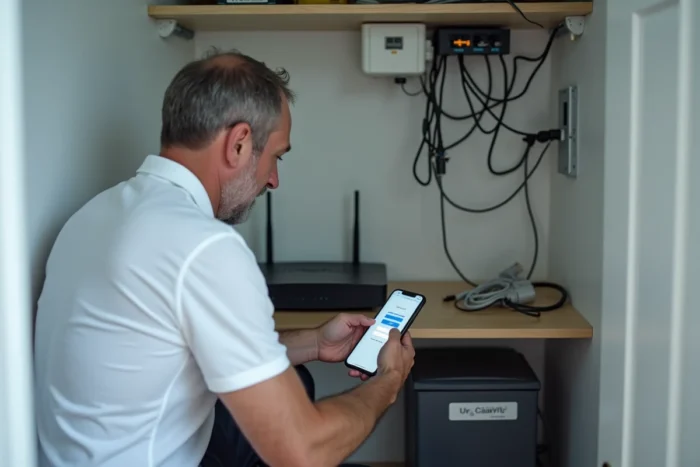
The administration interface is not only used to change the Wi-Fi password. A few settings deserve your attention from the first connection.
Changing the default admin password should be the first action. Factory credentials are public and identical for all users of the same box model. Leaving them in place is like leaving the door open to anyone connected to your network.
The Wi-Fi security protocol can also be configured from this interface. If your box still offers WEP, switch to WPA2 or WPA3. The network name (SSID) can be customized to distinguish it from those of neighbors.
You can also check the list of connected devices. This is a simple way to spot an unknown device on your local network.
- Change the Wi-Fi password and SSID
- Switch to WPA2 or WPA3 protocol
- Check the devices connected to the network
- Change the administrator password
Some boxes also allow you to configure MAC filtering, DHCP, or port forwarding. These options are aimed at more advanced uses (local server, IP camera, online gaming console).
The address 192.168.1.1 is nothing mysterious. It is a gateway to the settings of your home network. Check the gateway, use the address bar, and keep your credentials handy are enough to avoid most blocks. The rest can be resolved in a few clicks from the interface.